Green Screen for Beginners: Setup, Lighting & Editing Guide
Green screen for beginners — have you ever watched a video where the presenter seems to be on a tropical beach, in outer space, or inside a news studio, and wondered how it’s possible without leaving their home? Could this be the creative tool you’ve been missing to take your videos to a new level? And if so, how difficult would it be to set up one yourself?
For many people over 35, the world of video editing and special effects can seem complex and reserved for professionals. But the truth is, a green screen is one of the simplest and most affordable tools you can use to create impressive content. With the right setup, lighting, and a little editing knowledge, you can transport yourself anywhere in the world, all from the comfort of your living room.
This guide will take you step-by-step through choosing the best budget green screen kit, learning how to light a green screen evenly, and understanding chroma key editing in DaVinci Resolve and Premiere Pro. By the end, you’ll have the confidence to avoid common mistakes and start creating content that looks like it was made in a professional studio.


What is a Green Screen and How Does It Work?
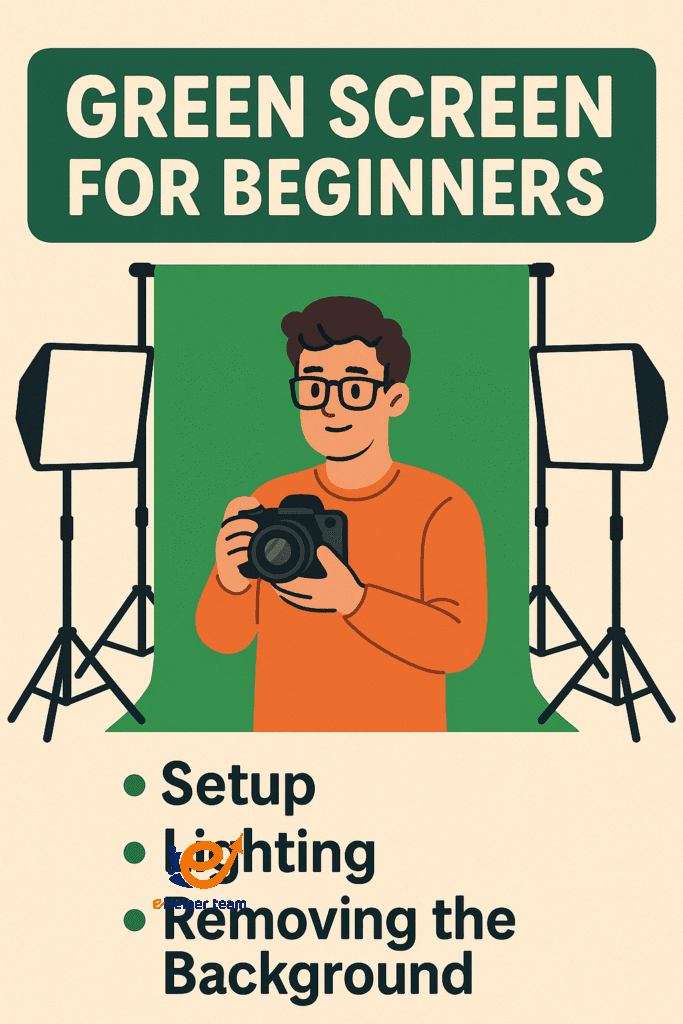
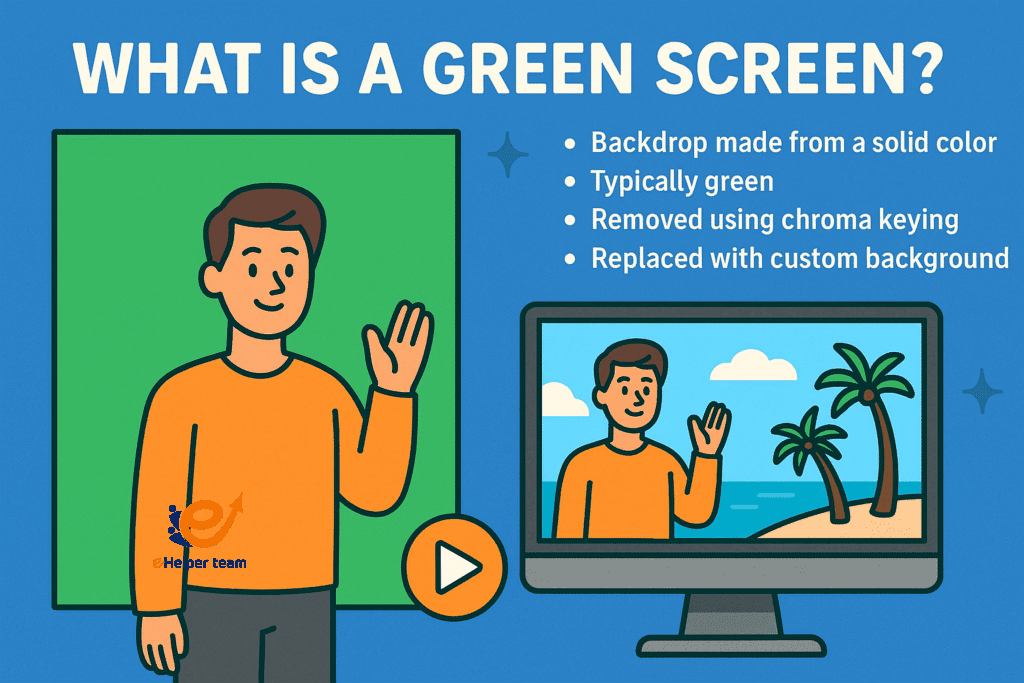
green screen for beginners is a simple yet powerful tool used in video production to replace the background with any image or footage you choose. Here are the key points to understand about how it works:
Definition: A backdrop made from a single, solid color—most often green—used during video recording.
How it Works: The green color is digitally removed in post-production through a technique called chroma keying, replacing it with another background.
Why Green is Chosen: It doesn’t match natural skin tones, making it easier for software to isolate and remove.
Common Uses: Widely used in films, television, online video content, and live streaming.
Further Learning: You can explore detailed explanations of chroma key principles in trusted educational resources like this detailed resource.
Choosing the Best Budget Green Screen Kit
When starting out, it’s important to choose a kit that fits your space, budget, and intended use.
1.Portable vs. Fixed Green Screens
Portable: Collapsible or foldable, ideal for creators with limited space or those who move their setup often.
Fixed: Mounted in a dedicated studio space, offering more stability and fewer wrinkles.
2.What to Look For in a Kit
Size: Large enough to cover your filming frame completely
Material: Matte fabric to prevent reflections
Support: Sturdy stands and clamps
Extras: Some kits include basic lighting, which is a big plus
How to Light a Green Screen Evenly
Lighting is key to getting a clean chroma key result. Without even lighting, your editing software will struggle to remove the background.
1.Essential Lighting Gear
Two softbox lights or LED panels for the backdrop
One or two separate lights for your subject
Light diffusers to soften shadows
2.Lighting Tips
Keep lights the same distance from the backdrop for uniform brightness
Position your subject at least 3–5 feet from the screen to prevent green spill
Avoid overexposure, which can make parts of the green screen too bright to key out
Setting Up Your Green Screen
Preparing Your Space
Clear enough room to stand several feet from the screen
Remove bright-colored objects that might reflect onto the screen
Ensure your shooting area has controllable lighting
Step-by-Step Setup
Assemble the stand and attach the crossbar
Hang the backdrop and secure it with clamps
Stretch it tight to avoid wrinkles
Adjust lighting before filming
Removing the Background: Chroma Key Basics
Editing software can handle green screen removal in a few simple steps.
Chroma Key in DaVinci Resolve
Import your video
In the Color tab, use the Qualifier to select the green
Adjust parameters to remove the green completely
Chroma Key in Premiere Pro
Add your clip to the timeline
Apply the Ultra Key effect
Use the eyedropper to select the green
Fine-tune edge settings
For more creative editing approaches, see this CapCut tutorial for TikTok.
Common Mistakes Beginners Make
Using wrinkled backdrops
Lighting the screen and subject with the same lights
Wearing green clothing
Shooting too close to the screen
Not checking exposure settings before filming
Comparison Table: Portable vs. Fixed Green Screens
| Feature | Portable Green Screen | Fixed Green Screen |
|---|---|---|
| Price Range | $40–$100 | $150+ |
| Setup Time | 5–10 minutes | 15–30 minutes |
| Storage | Easy to fold/store | Needs dedicated space |
| Lighting Needs | Moderate | Higher precision |
| Material | Polyester or muslin | High-quality matte |
| Best For | Beginners, small spaces | Studios, pros |
Content creators on TikTok and YouTube have used green screens to place themselves in exotic locations, trending scenes, or interactive backgrounds, dramatically increasing engagement. You can find inspiration in 10 Creative Green Screen TikTok Ideas.
Advanced Tip: Pairing Green Screens with AI Tools
Combining a green screen with AI-powered video generators can take your production to the next level. With these tools, you can design backgrounds that perfectly match your scene, making your videos stand out even more. Here’s a list of the 10 best AI video generators in 2025 to explore.
Pro-Level Shooting Tips for Green Screen
Even if your setup and lighting are correct, there are subtle techniques that can dramatically improve the final result:
Camera Angle Control – Keep the camera parallel to the green screen to avoid perspective distortion. If you plan to move the camera, use tracking tools in editing software to match the background movement.
Depth of Field Management – Using a wide aperture (e.g., f/2.8–f/4) can blur the background slightly, making keying smoother and hiding minor imperfections in the green screen.
Consistent White Balance – Set a manual white balance before shooting to prevent color shifts during filming, which can make chroma keying more challenging.
Avoid Overlapping Movements – Ensure no part of the subject exits and re-enters the green screen area mid-shot, as this can cause keying glitches.
Advanced Green Screen Problems and Solutions
Even experienced creators encounter issues that can ruin a shot if not addressed:
Green Spill on Hair or Clothing
Cause: Light bouncing off the green screen onto the subject.
Solution: Increase the distance between subject and screen, and use hair lights to create separation.
Color Mismatch with Background
Cause: Background image or video doesn’t match the lighting direction or color temperature of the subject.
Solution: Adjust the background in editing using color grading tools to match the scene.
Jagged Edges Around the Subject
Cause: Poor lighting or low-resolution footage.
Solution: Record in higher resolution and use matte cleanup tools to smooth edges.
Camera Settings for Green Screen Success
If your camera settings are wrong, no amount of editing can fully fix the footage. Here’s what to prioritize:
Resolution: Record at the highest available resolution (4K if possible) to capture fine detail.
Bitrate: Use a high bitrate to reduce compression artifacts around edges.
Frame Rate: Choose a frame rate that matches your final output, commonly 24fps for cinematic or 30fps for online content.
ISO: Keep ISO as low as possible to avoid grain, which makes chroma keying harder.
Editing Mistakes to Avoid During Chroma Key
Overusing Feathering: Too much edge feathering can make subjects look ghostly. Use it sparingly.
Ignoring Shadows: If you remove all shadows, the scene can look unnatural. Keep soft shadows when possible for realism.
Forgetting to Match Depth: If the background is sharp but the subject is blurred (or vice versa), the illusion breaks. Match depth of field for both.
Creative Ideas for Using Green Screen
Green screens aren’t just for replacing the background with an exotic location—they can be powerful storytelling tools:
Interactive Presentations: Add animated charts and diagrams that move behind you as you speak.
Split-Screen Effects: Appear twice in the same frame by filming yourself in two positions and combining them in editing.
Fantasy or Sci-Fi Scenes: Place yourself inside fictional worlds with custom-designed backgrounds.
Themed Events: For online parties or business webinars, use thematic backdrops to create atmosphere.
You can get more inspiration from 10 Creative Green Screen TikTok Ideas.
Maintaining and Storing Your Green Screen
To keep your green screen for beginners in top condition:
Regular Cleaning: Dust and dirt can cause uneven coloration. Use a lint roller or soft cloth to clean.
Proper Folding: For fabric screens, roll instead of folding to avoid deep wrinkles.
Climate Control: Store in a dry environment to prevent mold or discoloration.
Transport Cases: For portable screens, use padded cases to avoid damage during travel.
Integrating Virtual Sets and AI Enhancements
Modern AI technology can create realistic 3D environments that move naturally with your camera’s motion. When combined with a green screen, you can:
Walk through AI-generated streets that respond to your camera’s angle.
Change lighting in real-time to match your subject.
Create looping background animations that save editing time.
For powerful AI tools to enhance your projects, check out the 10 best AI video generators in 2025.
FAQ
Q1: Do I need expensive equipment to start with a green screen?
No, affordable kits work well if you light them properly.
Q2: Can I use a blue screen instead?
Yes, but blue requires more lighting and is less forgiving.
Q3: What’s the biggest mistake beginners make?
Uneven lighting and wrinkles in the backdrop.
Q4: What software works best?
DaVinci Resolve and Adobe Premiere Pro are both excellent.
Q5: How do I avoid green spill?
Keep your subject a few feet from the screen and light them separately.
Conclusion
Mastering green screen for beginners is about understanding your equipment, setting up your space correctly, and practicing good lighting techniques. With the steps in this guide, you can produce professional-looking videos from home, whether you’re teaching, marketing, or creating entertainment. The possibilities are endless—start experimenting today and watch your video quality transform.